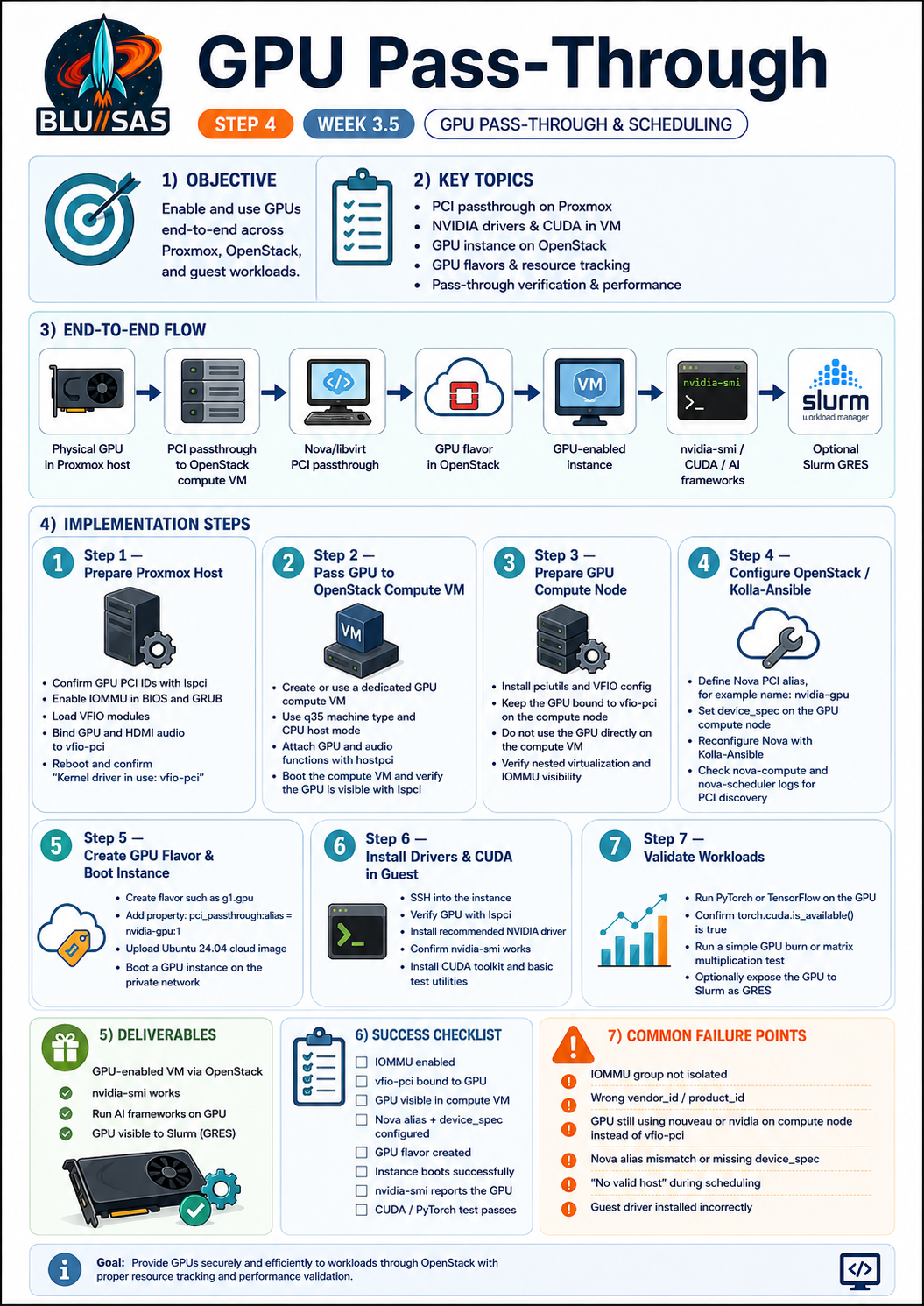
Step 1: Check PVE and GPU
PVE0 has the GPU:
sont@sont-LOQ-15ARP9:~$ ssh pve0
Linux pve0 7.0.2-6-pve #1 SMP PREEMPT_DYNAMIC PMX 7.0.2-6 (2026-05-20T08:55Z) x86_64

The programs included with the Debian GNU/Linux system are free software;
the exact distribution terms for each program are described in the
individual files in /usr/share/doc/*/copyright.

Debian GNU/Linux comes with ABSOLUTELY NO WARRANTY, to the extent
permitted by applicable law.
Last login: Fri Jun 26 17:56:47 2026 from 192.168.1.115
sont@pve0:~$ sudo -i
root@pve0:~# lspci -nn | grep -Ei 'nvidia|vga|3d|display|audio'
00:1b.0 Audio device [0403]: Intel Corporation 82801JI (ICH10 Family) HD Audio Controller [8086:3a3e]
03:00.0 VGA compatible controller [0300]: NVIDIA Corporation GM204 [GeForce GTX 970] [10de:13c2] (rev a1)
03:00.1 Audio device [0403]: NVIDIA Corporation GM204 High Definition Audio Controller [10de:0fbb] (rev a1)
IOMMU Grouping 16:
IOMMU Group 16
	03:00.0 VGA compatible controller [0300]: NVIDIA Corporation GM204 [GeForce GTX 970] [10de:13c2] (rev a1)
	03:00.1 Audio device [0403]: NVIDIA Corporation GM204 High Definition Audio Controller [10de:0fbb] (rev a1)
Step 2: Enable IOMMU on Proxmox
Check CPU vendor:
lscpu | grep -i vendorFor Intel, edit GRUB:
nano /etc/default/grubSet:
GRUB_CMDLINE_LINUX_DEFAULT="quiet intel_iommu=on iommu=pt"For AMD:
GRUB_CMDLINE_LINUX_DEFAULT="quiet amd_iommu=on iommu=pt"Update bootloader:
update-grubLoad VFIO modules:
cat >/etc/modules-load.d/vfio.conf <<'EOF'
vfio
vfio_iommu_type1
vfio_pci
vfio_virqfd
EOF
Bind the GPU to vfio-pci. Replace the IDs with yours:
cat >/etc/modprobe.d/vfio.conf <<'EOF'
options vfio-pci ids=10de:1b81,10de:10f0 disable_vga=1
EOF
Blacklist host NVIDIA/Nouveau drivers on the Proxmox host:
cat >/etc/modprobe.d/blacklist-gpu.conf <<'EOF'
blacklist nouveau
blacklist nvidia
blacklist nvidiafb
blacklist nvidia_drm
blacklist nvidia_modeset
blacklist nvidia_uvm
EOF
Rebuild initramfs:
update-initramfs -u -k all
reboot
After reboot:
dmesg | grep -Ei 'iommu|dmar'
lspci -nnk -s 03:00.0
lspci -nnk -s 03:00.1
Expected:
Kernel driver in use: vfio-pciStep 3: Pass the GPU into the OpenStack compute VM
Shut down the OpenStack compute VM first.
Example if your GPU compute VM ID is 1212:
qm shutdown 1212Set machine type and CPU model:
qm set 1212 --machine q35
qm set 1212 --cpu host
Enable nested virtualization features as far as practical:
qm set 1212 --numa 1Pass through both GPU functions:
qm set 1212 --hostpci0 01:00.0,pcie=1
qm set 1212 --hostpci1 01:00.1,pcie=1
For some NVIDIA GPUs, especially if it is also the boot/display GPU, you may need:
qm set 1212 --hostpci0 01:00.0,pcie=1,x-vga=1For IOMMU Group:
qm set 1212 --args '-machine kernel_irqchip=split -device intel-iommu,intremap=on,caching-mode=on'Start the VM:
qm start 1212Inside the OpenStack compute VM:
lspci -nn | grep -Ei 'nvidia|vga|3d|audio'Expected:
01:00.0 VGA compatible controller [0300]: NVIDIA Corporation ... [10de:xxxx]
01:00.1 Audio device [0403]: NVIDIA Corporation ... [10de:xxxx]
At this point, the OpenStack compute VM can see the physical GPU.
Step 4 — Prepare the OpenStack compute VM for PCI passthrough
Inside the OpenStack compute VM, verify KVM and IOMMU:
egrep -c '(vmx|svm)' /proc/cpuinfo
ls -ld /sys/kernel/iommu_groups/*
Install tools:
sudo apt update
sudo apt install -y pciutils
Check the GPU:
lspci -nnk | grep -A4 -Ei 'nvidia|vga|3d'For OpenStack passthrough, the GPU should usually be bound to vfio-pci on the OpenStack compute VM, not used by the compute VM itself.
Create VFIO config inside the OpenStack compute VM:
sudo tee /etc/modules-load.d/vfio.conf >/dev/null <<'EOF'
vfio
vfio_iommu_type1
vfio_pci
vfio_virqfd
EOF
Replace IDs with your actual GPU IDs:
sudo tee /etc/modprobe.d/vfio.conf >/dev/null <<'EOF'
options vfio-pci ids=10de:1b81,10de:10f0 disable_vga=1
EOF
Blacklist Nouveau/NVIDIA inside the compute VM:
sudo tee /etc/modprobe.d/blacklist-gpu.conf >/dev/null <<'EOF'
blacklist nouveau
blacklist nvidia
blacklist nvidiafb
blacklist nvidia_drm
blacklist nvidia_modeset
blacklist nvidia_uvm
EOF
Update initramfs:
sudo update-initramfs -u -k all
sudo reboot
After reboot:
lspci -nnk -s 01:00.0Expected:
Kernel driver in use: vfio-pciStep 5 — Configure Nova PCI passthrough in Kolla-Ansible
On your Kolla deployment host/controller, activate your Kolla environment:
source /opt/kolla-venv/bin/activateConfirm your inventory variable:
echo "$KOLLA_INVENTORY"Example:
export KOLLA_INVENTORY=/etc/kolla/multinodeCheck your OpenStack nodes:
ansible -i "$KOLLA_INVENTORY" all -m pingNow create Kolla Nova config override directories:
sudo mkdir -p /etc/kolla/config/nova
sudo mkdir -p /etc/kolla/config/nova/gpu
You need two levels of config:
- Controller / scheduler / API side: define the alias.
- Compute node side: define which PCI devices are available.
Nova’s current PCI passthrough syntax uses [pci] device_spec and [pci] alias. Older examples may show passthrough_whitelist; prefer device_spec for current Nova. OpenStack documents that the device request is made through flavor extra specs using pci_passthrough:alias.
Create a global Nova override for the alias:
sudo tee /etc/kolla/config/nova.conf >/dev/null <<'EOF'
[pci]
alias = { "vendor_id": "10de", "product_id": "13c2", "device_type": "type-PCI", "name": "nvidia-gpu" }
EOF
Replace 1b81 with your GPU product ID.
Then create a host-specific compute override for the GPU compute node. Replace gpu with the exact hostname from your Kolla inventory:
sudo tee /etc/kolla/config/nova/gpu/nova.conf >/dev/null <<'EOF'
[pci]
device_spec = { "vendor_id": "10de", "product_id": "13c2", "device_type": "type-PCI" }
alias = { "vendor_id": "10de", "product_id": "13c2", "device_type": "type-PCI", "name": "nvidia-gpu" }
EOF
Important: the alias and device_spec must match in vendor_id, product_id, and device_type. Red Hat’s OpenStack PCI passthrough guidance also warns that device_spec on Compute nodes and alias on the control plane must use the same device_type for the same device.
Step 6 — Reconfigure Nova with Kolla-Ansible
Run prechecks first:
source /opt/kolla-venv/bin/activate
kolla-ansible prechecks -i "$KOLLA_INVENTORY" --tags nova
Then reconfigure Nova:
source /opt/kolla-venv/bin/activate
kolla-ansible reconfigure -i "$KOLLA_INVENTORY" --tags nova
Check Nova containers:
docker ps --format 'table {{.Names}}\t{{.Status}}' | grep novaOn the GPU compute VM, check the Nova compute logs:
docker logs nova_compute --tail 200Look for PCI discovery messages:
docker logs nova_compute 2>&1 | grep -Ei 'pci|vfio|nvidia|device_spec|alias'Step 7 — Verify OpenStack sees the GPU compute node
Load OpenStack credentials:
source /etc/kolla/admin-openrc.shCheck services:
openstack compute service list
openstack hypervisor list
openstack hypervisor show gpu
Check resource providers:
openstack resource provider listThen inspect the GPU compute resource provider:
openstack resource provider list | grep gpuNova PCI passthrough devices are not always obvious from simple openstack hypervisor show, so logs are often more useful at this stage.
Check Nova scheduler logs:
docker logs nova_scheduler --tail 200 | grep -Ei 'pci|alias|placement|resource'Step 8 — Create a GPU flavor
Create a small GPU flavor:
openstack flavor create g1.gpu \
  --ram 8192 \
  --disk 40 \
  --vcpus 4
Attach the PCI alias:
openstack flavor set g1.gpu \
  --property "pci_passthrough:alias"="nvidia-gpu:1"
Verify:
openstack flavor show g1.gpuExpected property:
pci_passthrough:alias='nvidia-gpu:1'Step 9 — Prepare a GPU-ready image
Use Ubuntu 24.04 cloud image:
wget https://cloud-images.ubuntu.com/noble/current/noble-server-cloudimg-amd64.imgUpload to Glance:
openstack image create ubuntu-24.04-gpu \
  --file noble-server-cloudimg-amd64.img \
  --disk-format qcow2 \
  --container-format bare \
  --public
Optional but useful:
openstack image set ubuntu-24.04-gpu \
  --property hw_qemu_guest_agent=yes
Step 10 — Boot the GPU instance
Find network:
openstack network listFind keypair:
openstack keypair listBoot:
openstack server create gpu-test-01 \
  --image ubuntu-24.04-gpu \
  --flavor g1.gpu \
  --network private \
  --key-name your-key
Watch build status:
openstack server list
openstack server show gpu-test-01
If it fails with No valid host, check:
docker logs nova_scheduler --tail 300
docker logs nova_compute --tail 300
Common causes:
PCI alias not defined on controller side
device_spec missing on compute side
wrong product_id
GPU not bound to vfio-pci
GPU compute node disabled
IOMMU not visible inside compute VM
nested passthrough unsupported by host/guest combination
Step 11 — Verify GPU inside the OpenStack instance
SSH into the instance:
ssh ubuntu@<floating-ip>Check PCI visibility:
lspci -nn | grep -Ei 'nvidia|vga|3d'Expected:
NVIDIA Corporation ...Install NVIDIA driver:
sudo apt update
sudo apt install -y ubuntu-drivers-common
ubuntu-drivers devices
Install the recommended driver:
sudo ubuntu-drivers install
sudo reboot
After reboot:
nvidia-smiExpected:
+-----------------------------------------------------------------------------+
| NVIDIA-SMI ... Driver Version ... CUDA Version ...                           |
| GPU  Name ...                                                                |
+-----------------------------------------------------------------------------+
That completes the core deliverable:
GPU-enabled VM via OpenStack
nvidia-smi works
Step 12 — Install CUDA test tooling
Inside the OpenStack GPU instance:
sudo apt update
sudo apt install -y build-essential dkms linux-headers-$(uname -r)
Install CUDA toolkit from Ubuntu packages:
sudo apt install -y nvidia-cuda-toolkitCheck:
nvcc --version || true
nvidia-smi
Run a simple GPU stress check:
sudo apt install -y git make g++
git clone https://github.com/wilicc/gpu-burn.git
cd gpu-burn
make
./gpu_burn 60
Watch GPU activity:
watch -n1 nvidia-smiStep 13 — Run PyTorch on the GPU
Inside the instance:
sudo apt install -y python3-venv python3-pip
python3 -m venv ~/venvs/gpu
source ~/venvs/gpu/bin/activate
pip install --upgrade pip
Install PyTorch CUDA wheel. The exact wheel depends on the current PyTorch/CUDA release, so check the PyTorch selector when you do this. A typical command looks like:
pip install torch torchvision torchaudio --index-url https://download.pytorch.org/whl/cu121Test:
python - <<'PY'
import torch
print("Torch:", torch.__version__)
print("CUDA available:", torch.cuda.is_available())
print("GPU count:", torch.cuda.device_count())
if torch.cuda.is_available():
    print("GPU name:", torch.cuda.get_device_name(0))
    x = torch.rand(4096, 4096, device="cuda")
    y = x @ x
    print("Matrix result:", y[0][0].item())
PY
Expected:
CUDA available: True
GPU count: 1
GPU name: <your NVIDIA GPU>
Step 14 — Make the GPU visible to Slurm with GRES
If you are building Slurm on top of OpenStack instances, the GPU node is now simply a Slurm worker with an NVIDIA GPU.
Install Slurm worker packages on the GPU instance:
sudo apt update
sudo apt install -y slurmd munge
Install NVIDIA tooling if not already done:
nvidia-smiCreate GRES config:
sudo tee /etc/slurm/gres.conf >/dev/null <<'EOF'
Name=gpu Type=nvidia File=/dev/nvidia0
EOF
On the Slurm controller, configure the node in slurm.conf.
Example:
NodeName=gpu-test-01 CPUs=4 RealMemory=7500 Gres=gpu:nvidia:1 State=UNKNOWN
PartitionName=gpu Nodes=gpu-test-01 Default=YES MaxTime=INFINITE State=UP
Restart Slurm controller and worker:
On controller:
sudo systemctl restart slurmctldOn GPU instance:
sudo systemctl restart munge
sudo systemctl restart slurmd
Check:
sinfo
scontrol show node gpu-test-01
Expected:
Gres=gpu:nvidia:1Submit a GPU job:
cat > gpu-test.sbatch <<'EOF'
#!/bin/bash
#SBATCH --job-name=gpu-test
#SBATCH --partition=gpu
#SBATCH --gres=gpu:1
#SBATCH --time=00:05:00
#SBATCH --output=gpu-test.out

hostname
nvidia-smi
python3 - <<'PY'
import torch
print(torch.cuda.is_available())
print(torch.cuda.get_device_name(0))
PY
EOF

sbatch gpu-test.sbatch
Check:
squeue
cat gpu-test.out
Step 15 — Performance and validation checklist
Run these from the OpenStack instance:
lspci -nn | grep -Ei 'nvidia|vga|3d'
nvidia-smi
nvidia-smi topo -m
nvidia-smi dmon -s pucvmt
Run CUDA/PyTorch test:
python3 - <<'PY'
import torch, time
device = "cuda"
a = torch.randn((8192, 8192), device=device)
b = torch.randn((8192, 8192), device=device)
torch.cuda.synchronize()
start = time.time()
c = a @ b
torch.cuda.synchronize()
print("Seconds:", time.time() - start)
print("GPU:", torch.cuda.get_device_name(0))
PY
Check from OpenStack side:
openstack server show gpu-test-01
openstack flavor show g1.gpu
openstack compute service list
Check Nova logs:
docker logs nova_compute --tail 200 | grep -Ei 'pci|claim|vfio|nvidia'
docker logs nova_scheduler --tail 200 | grep -Ei 'pci|alias|claim|filter'
Common failure modes
1. GPU not isolated in IOMMU group
Symptom:
vfio: group is not viableFix:
Check IOMMU group:
for g in /sys/kernel/iommu_groups/*; do
  echo "Group ${g##*/}"
  for d in "$g"/devices/*; do
    lspci -nns ${d##*/}
  done
done
You may need to move the GPU to another PCIe slot or enable motherboard ACS/IOMMU options.
2. GPU still using Nouveau or NVIDIA driver on compute node
Symptom:
Kernel driver in use: nouveauFix:
sudo modprobe -r nouveau
sudo update-initramfs -u -k all
sudo reboot
Confirm:
lspci -nnk -s 01:00.0Expected:
Kernel driver in use: vfio-pci3. OpenStack says No valid host
Likely causes:
Wrong vendor_id/product_id
Alias only configured on compute but not controller/API/scheduler
device_spec only configured globally but not on GPU compute
Nova containers not reconfigured
GPU compute node disabled
PCI device already consumed by another instance
Nested passthrough not working
Commands:
openstack compute service list
docker logs nova_scheduler --tail 300
docker logs nova_compute --tail 300
4. Instance boots but no GPU appears
Inside the instance:
lspci -nn | grep -Ei 'nvidia|vga|3d'If empty, Nova/libvirt did not attach the PCI device.
Check on the GPU compute node:
docker logs nova_compute --tail 300 | grep -Ei 'pci|vfio|libvirt|qemu'5. nvidia-smi fails inside the instance
If lspci shows the GPU but nvidia-smi fails, the passthrough path probably worked, but the guest driver is wrong.
Check:
lspci -nnk | grep -A4 -Ei 'nvidia|vga|3d'
dkms status
uname -r
Then reinstall:
sudo apt purge -y 'nvidia-*'
sudo apt autoremove -y
sudo ubuntu-drivers install
sudo reboot
Final success criteria
You are done when all of these work:
openstack server create gpu-test-01 --flavor g1.gpu ...
openstack server show gpu-test-01
ssh ubuntu@<floating-ip>
lspci -nn | grep -i nvidia
nvidia-smi
python -c 'import torch; print(torch.cuda.is_available())'
scontrol show node gpu-test-01 | grep Gres
sbatch gpu-test.sbatch
The Phase 4 deliverable becomes:
GPU-enabled VM via OpenStack:      complete
nvidia-smi works:                  complete
AI frameworks on GPU:              complete
GPU visible to Slurm via GRES:     complete